Components
40 components are in Dense data. Each one is here for a reason, and every reason traces back to the answers further down.
How the decisions cascade into them ↓The inventory
Action · 2
Buttons and toggles that start or switch something.
- ButtonEvery action.

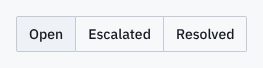
- Toggle groupSwitches a table between views and densities.
Form · 14
Fields, choices and pickers that take input.
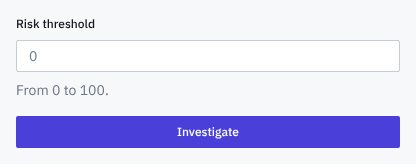
- InputSearch and edit fields.
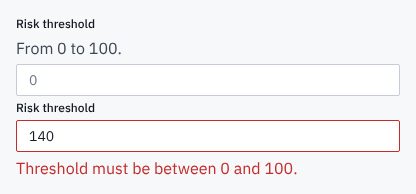
- Input groupSearch with an icon and a clear button.

- SliderNarrows a filter to a range of risk scores by dragging.

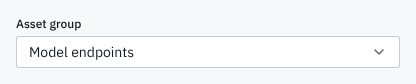
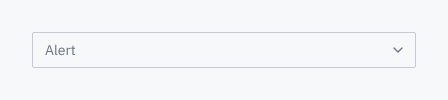
- SelectPicks one value in filters and forms.
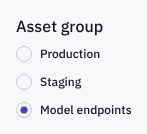
- Radio groupPicks one of two or three options, all visible at once.
- ComboboxPicks an asset or a user from thousands.
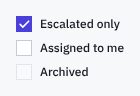
- CheckboxSelects rows and filter values.
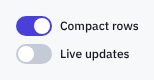
- SwitchSettings that apply at once.
- LabelNames every control.
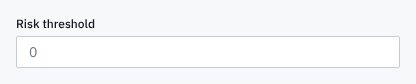
- FieldLays out label, control and error the same way everywhere.
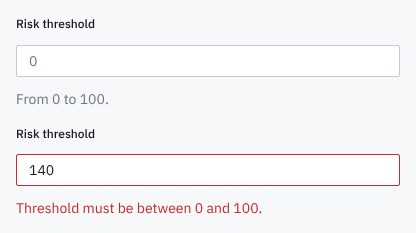
- FormKeeps validation and errors the same on every record edit.
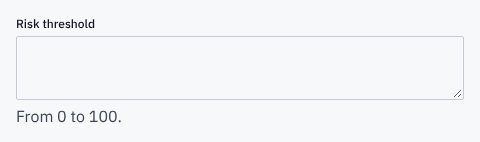
- TextareaNotes on an alert, for the next analyst.
- CalendarDate ranges for reports.
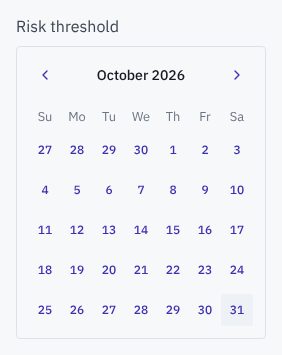
- Date pickerPicks a date range for reports and filters from a button in the toolbar.
Data · 3
Tables, charts and counts that show records.
- TableThe heart of the product: rows of records.
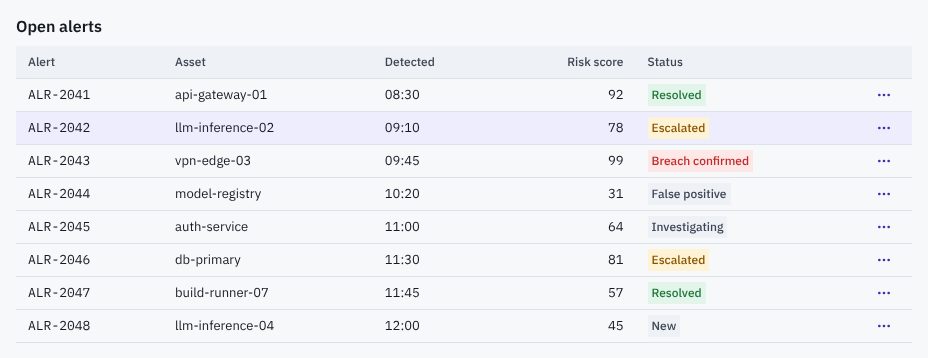
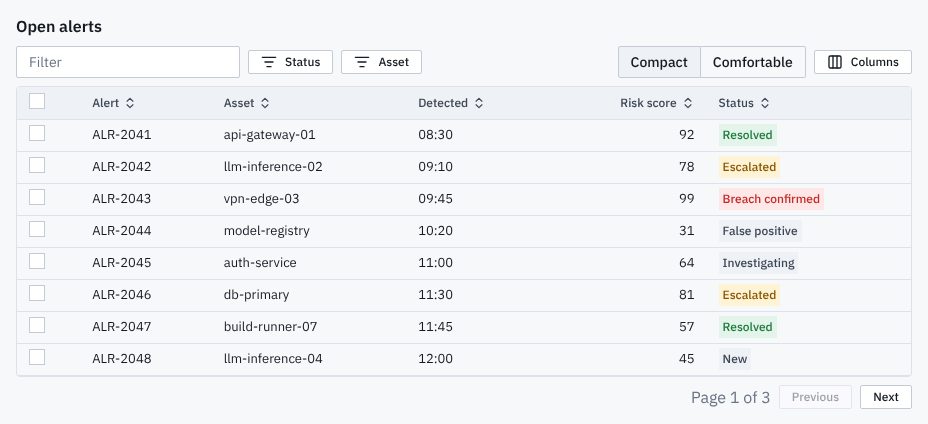
- Data tableAnalysts scan hundreds of alerts, filter by status and asset group, sort by risk and act on many rows at once.
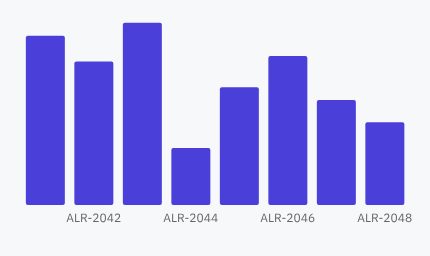
- ChartTotals over time on dashboards.
Navigation · 7
Menus, tabs, breadcrumbs and bars that move between places.
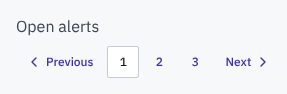
- PaginationMoves through long result sets.
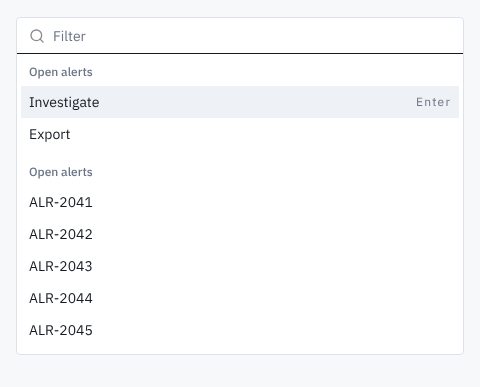
- CommandKeyboard-first jump to any record or action.
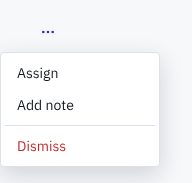
- Dropdown menuRow actions.
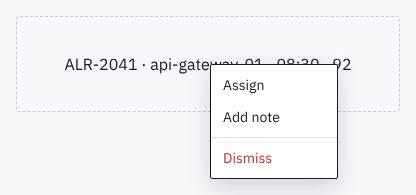
- Context menuRight-click on a row, for experts.
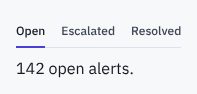
- TabsViews of one record.
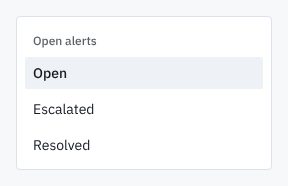
- SidebarApp navigation that stays open all shift.
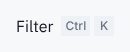
- KbdShows the shortcuts experts learn.
Feedback · 5
Alerts, toasts, loading and empty states that report what happened.
- BadgeAlert status in rows.
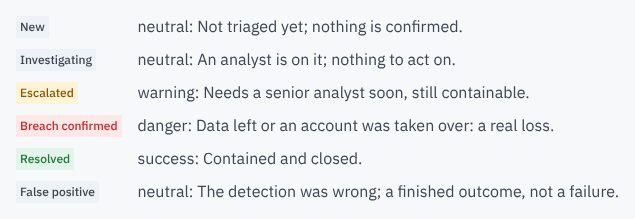
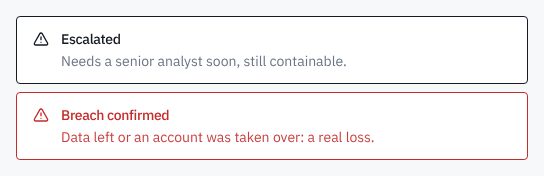
- AlertA problem that stays on the page.
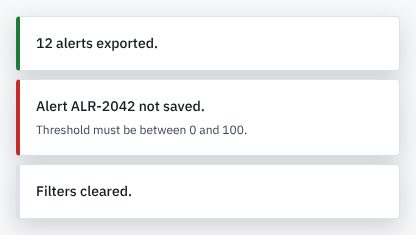
- ToastConfirms a saved change.
- SkeletonRows while a table loads.

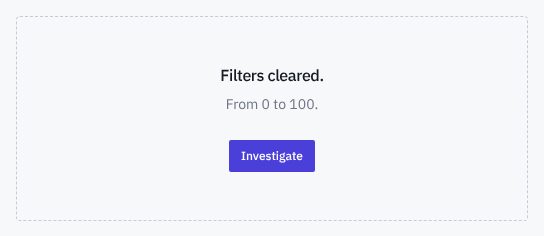
- EmptyAn empty table says what to do next.
Overlay · 5
Dialogs, sheets, popovers and tooltips that sit above the page.
- DialogEdit one record without leaving the table.
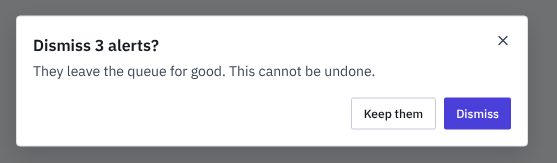
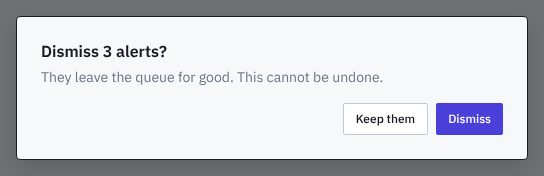
- Alert dialogConfirms a delete.
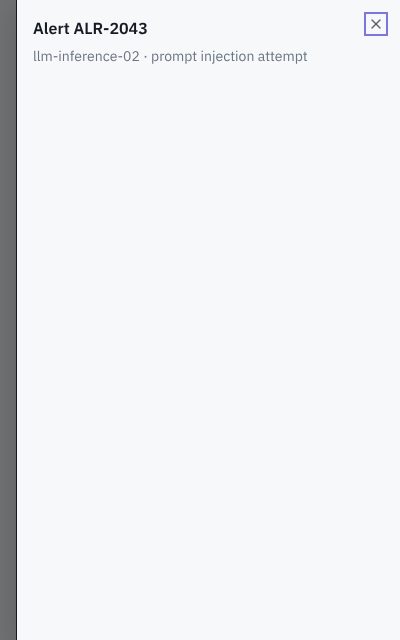
- SheetRecord details beside the table.
- PopoverFilters next to the column.
- TooltipExplains an icon button.

Layout · 4
Cards, separators and containers that group and arrange content.
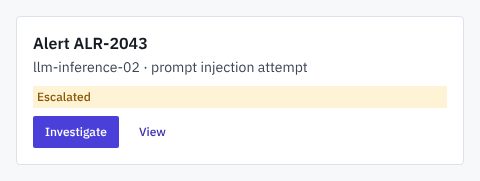
- CardDashboard figures.
- SeparatorGroups toolbar actions.
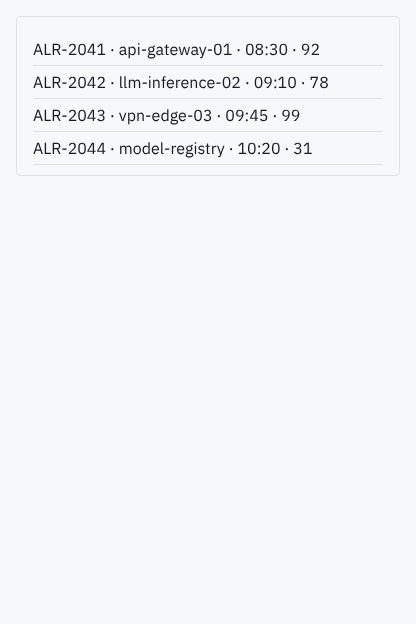
- Scroll areaLong tables in fixed panels.
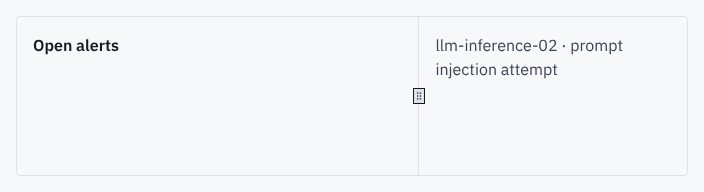
- ResizableExperts size the table and detail panes.
How the decisions cascade into them
The reasons come first. Five answers follow from them, and each answer shapes the inventory.
1 · The reasons
- R1Content and dataNumbers and records, a lot
- R2Tasks and flowsScan and compare, constantly
- R3Team and deliveryA small team, every month
- R4Use scenariosAt a desk, all day
- R5BrandPrecise, quiet
2 · Five answers, and what each does to the inventory
- Which component families does it need?becauseR1R2
- Actions, forms, feedback, overlays, layout and navigation
- Core, plus data (chosen)
- Core, plus content and media
- Core, plus media
Records need tables, filters and fast ways to move between them.
Admits 7 families: action, form, feedback, overlay, layout, navigation, data.
- How far does the inventory reach?becauseR1R3
- Only what today's screens useA component joins when a screen in use needs it, not before.
- What today's screens use, plus what the next ones will likely need (chosen)Covers the screens in use and the ones the team can see coming, so they find the parts ready.
- Everything its families offer, ready before it's asked forEvery component the admitted families hold is there from the start, so teams never wait for one.
A full operations tool with the parts its next screens will need, still few enough for a small team to keep right.
What today's screens use, plus what the next ones will likely need: Dense data carries 40, as many as its needs.
- How does a component earn its place?becauseR4R2
- A use scenario needs it (chosen)
- Its family is in the roles, so product teams find it ready
- It works for everyone, with any device and assistive technology
- It gives the brand a moment
A component joins only when a daily task needs it.
Every component in the list above names the need it meets.
- When does a component get another look?becauseR5R2
- Only when the meaning changes (chosen)A new variant only for a different meaning, such as the main action or a danger.
- Also for emphasis and sizeVariants also set how loud a component is and how much room it takes.
- Also so each brand or page can look its own wayVariants also let a brand or a page carry its own look on the same component.
Repeated screens stay identical when a component changes only with its meaning.
Only when the meaning changes variants per component: the components above keep to them.
- Where do components do the most work?becauseR1R2
- Tables and forms (chosen)
- Articles
- Forms and steps
- Sign-up and account pages
- Campaign sections
Most work happens in tables and the forms that edit them.
Most components above serve tables and forms.
3 · The inventory
40 components, listed above, each with the reason it passed. Back to the list
Dense data carries 40 components: core, plus data, each admitted because a use scenario needs it.